The ultimate bulk video generation and automation engine. Input text prompts, customize your batch size up to 100, and generate thousands of premium short-form videos daily automatically.
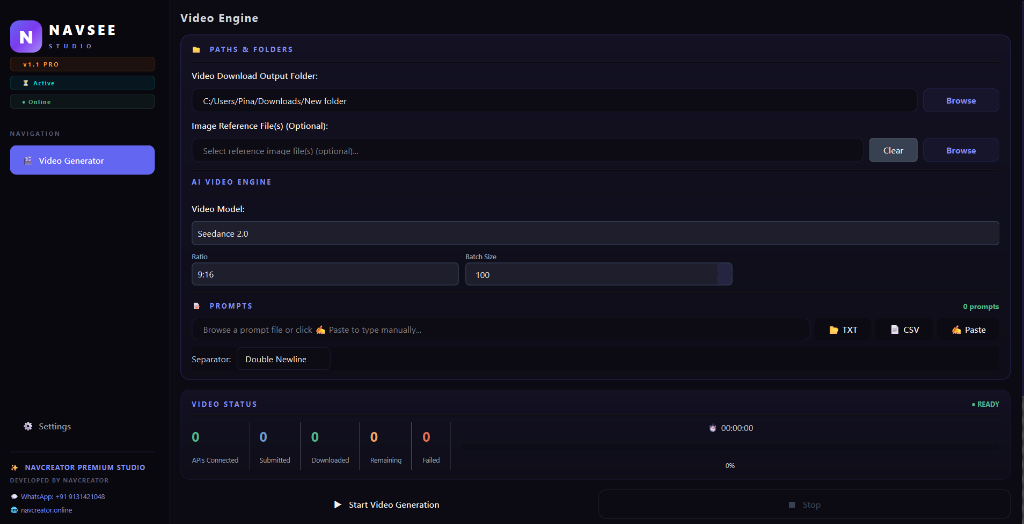
Automate video generation with the latest high-fidelity Seedance model. Direct text-to-video render pipeline.
Unlike web tools, you are never locked behind daily render limits. Connect unlimited profiles to scale infinitely.
Import hundreds of prompts from a plain `.txt` or `.csv` document, click start, and walk away as the studio renders them.
Adjust parallel batch size (1-100) to submit prompts simultaneously. Maximum speed without overloading your local PC.
Traditional generators enforce strict browser queues and monthly caps. Seedance Video Studio runs directly on your machine, using headless connections to process your requests with total independence.
Automate video generation with the latest high-fidelity Seedance 2.0 model, providing realistic and cinematic results.
Experience high-fidelity rendering, vibrant colors, and sharp detailing on every generated frame.
Create thousands of video clips daily without monthly credits, rendering limits, or caps.
All files are rendered in high-definition 720p quality, ensuring they look professional on any screen.
Enjoy flexible duration settings up to 15 seconds, perfect for quick loops and descriptive clips.
Fully supports both vertical (9:16) aspect ratios for Reels/Shorts and horizontal (16:9) aspect ratios for landscape widescreen.
Follow these simple steps to start creating hundreds of video files on your Windows machine.
Launch the portable desktop app on your machine and connect your license key.
Supply the prompts you want to transform into videos. You can paste them or load files.
Configure your model and aspect ratio, choose batch concurrency, and run.
Get the premium Seedance bulk client. No browser load, no installation required, fully portable executable for Windows.
v1.1.0 Stable Build (.exe)
The client does not have daily render caps. You can connect as many API connection profiles as you want to generate hundreds or thousands of high-quality clips daily.
Batch size controls how many prompts are submitted to the rendering engine concurrently. The app runs headlessly in the background, utilizing direct network API calls to ensure maximum speed without slow load times.
Because the app is a portable standalone executable compiled to C binary, Windows Defender flags unrecognized binaries. You can safely click "More info" and "Run anyway". No adware is included, and execution remains local.
All videos are saved in the output directory selected on the main window. Filenames correspond to the text prompt to make cataloging easy.